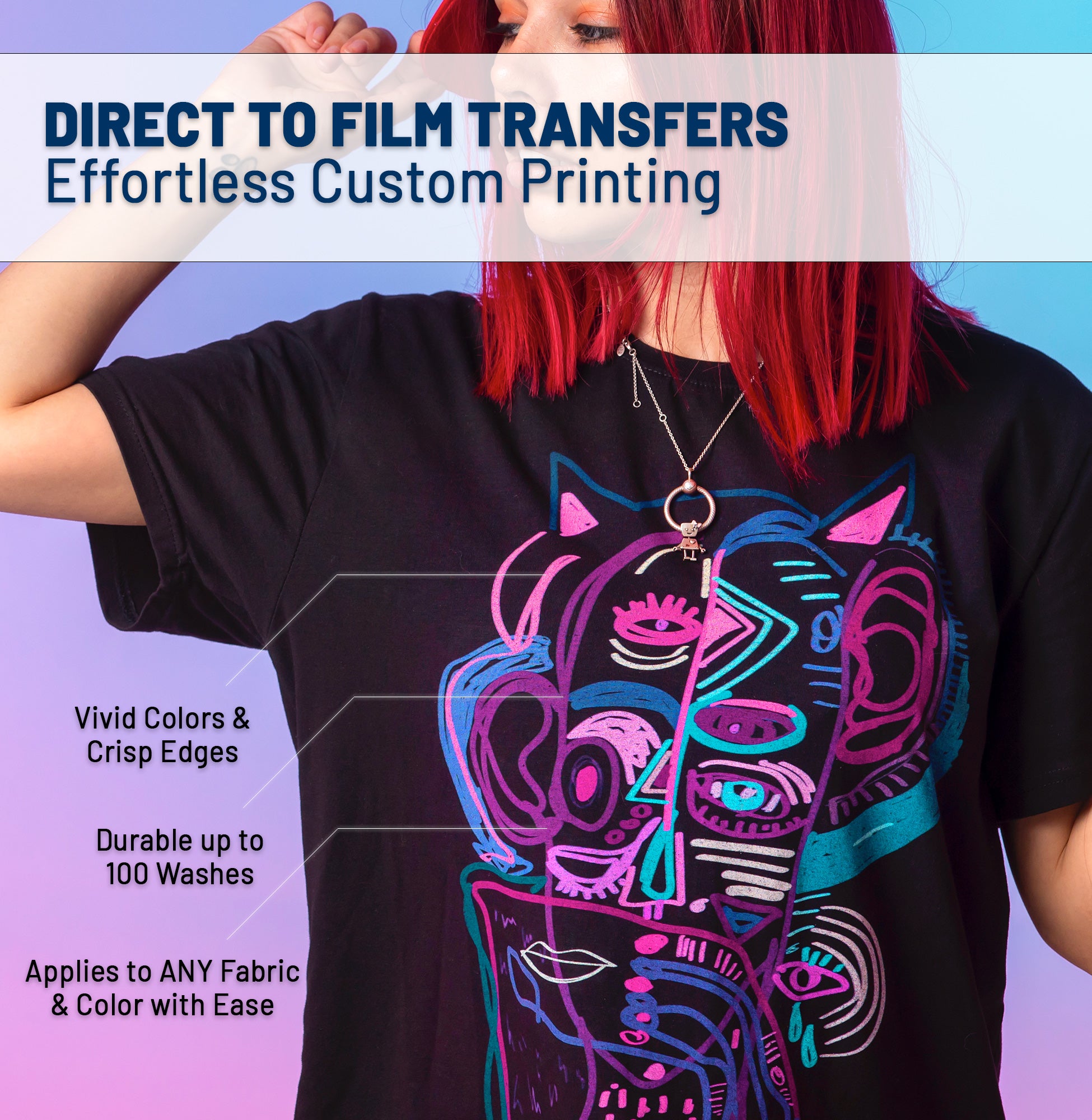




You spent hours perfecting your design in Photoshop. The preview looks incredible—rich, vibrant colors that pop off the screen. Then the finished shirt arrives and... it's dull. Washed out. Completely different. Sound familiar? This is the #1 frustration in the DTF industry, and the fix is surprisingly simple once you understand color management.
🎨 The Core Problem: Screen vs. Print
Your computer monitor uses RGB (Red, Green, Blue) light to display colors. Printers use CMYK (Cyan, Magenta, Yellow, Black) ink to create colors. These two systems cannot display the same range of colors—it's physically impossible. Understanding this gap is step one to fixing it.
Understanding Color Spaces: RGB vs CMYK
💡 RGB (Additive Color)
- Used by: Monitors, phones, screens
- How it works: Light is added together
- Gamut: Very wide (16.7 million colors)
- Neon colors? Yes, easily achievable
🖨️ CMYK (Subtractive Color)
- Used by: Printers, including DTF
- How it works: Ink absorbs light
- Gamut: Much narrower than RGB
- Neon colors? Very difficult (need spot colors)
Here's the key takeaway: Bright neon greens, electric blues, and hot pinks on your screen will NEVER look the same when printed. They are "out of gamut." A good DTF workflow accounts for this from the start.
🔧 5 Pro Tips for Better DTF Color Accuracy
1. Design in CMYK Mode (Not RGB)
If you're designing in Adobe Photoshop or Illustrator, switch to CMYK mode before you start designing.
- Photoshop: Image → Mode → CMYK Color
- Illustrator: File → Document Color Mode → CMYK
This way, you'll see a more accurate preview of your printed colors as you design.
2. Use Soft Proofing
Soft proofing simulates how your design will look when printed. It's like a "print preview" for colors.
- Photoshop: View → Proof Setup → Custom → Select your printer's ICC profile
- Enable "Simulate Paper Color" for the most realistic preview
- If you don't have an ICC profile, use "U.S. Web Coated (SWOP) v2" as a general approximation
3. Calibrate Your Monitor
Your monitor might be displaying colors incorrectly. A cheap monitor with high brightness and oversaturated colors will mislead you.
- Budget option: Use Windows/Mac built-in color calibration tools
- Pro option: Use a hardware calibrator like X-Rite i1Display or Datacolor SpyderX
- Set your monitor brightness to ~120 cd/m² and color temperature to 6500K (D65)
4. Create a Color Swatch Test Sheet
Print a test sheet with your most-used colors and keep it as a physical reference.
- Include gradient bars (0-100% saturation) for each primary color
- Include skin tones if you print portraits or characters
- Press it onto your most common blank (white and black fabric)
- Compare your monitor to this sheet—adjust your expectations accordingly
5. Communicate with Your Print Provider
If you're using a print service like Sky Print House, we can help you dial in the colors.
- Provide Pantone color codes if exact matching is critical (branding, logos)
- Note that we use state-of-the-art calibrated DTF printers for maximum vibrancy
- Request a test print for large orders to verify colors before production
📊 Common Color Problems & Fixes
| Problem | Likely Cause | Solution |
|---|---|---|
| Colors look dull/washed out | RGB-to-CMYK conversion loss | Design in CMYK from the start; boost saturation by 10-15% |
| Reds look orange or brown | Pure red is hard in CMYK | Add a touch of magenta; use M:100 Y:100 C:0 K:0 |
| Blues look purple | Too much magenta in the blue | Increase cyan, reduce magenta; use C:100 M:50 Y:0 K:0 |
| Neon colors don't pop | Out of CMYK gamut | Accept a less vibrant version OR use specialty UV/fluorescent inks |
| Skin tones look unnatural | Common in photo prints | Use preset skin tone values; avoid auto color correction |
🎯 Pantone Matching for Brand Colors
If you're printing official logos or brand colors, Pantone matching is critical. Here's how to work with it:
What is Pantone?
Pantone is a standardized color matching system. Each color has a unique code (like "Pantone 185 C" for Coca-Cola red). This code ensures consistency across different printers and materials worldwide.
How to Use It:
- Ask your client for the exact Pantone code(s) of their brand colors
- Use the Pantone color library in Illustrator (Window → Swatch Libraries → Color Books → Pantone+)
- Provide these codes to your DTF print provider
- Note: Pantone-to-CMYK conversions are approximations—the physical Pantone swatch book is the true reference
🏁 The Bottom Line
Color management isn't magic—it's science. And once you understand the rules, you can work within them (or around them) to get the results your customers expect.
- Design in CMYK from the start
- Calibrate your monitor so you see accurate colors
- Use soft proofing to preview printed output
- Create test prints for important projects
- Communicate with your print provider—we're here to help!
At Sky Print House, our DTF printers are professionally calibrated and maintained for maximum color vibrancy and consistency. We handle the hard part—you just upload your design.
Need Help With Your Design?
Upload your design and let our team ensure it's print-ready with accurate colors.
Start Your Order →Have a color management question? Drop it in the comments below! — Sky Print Academy Team